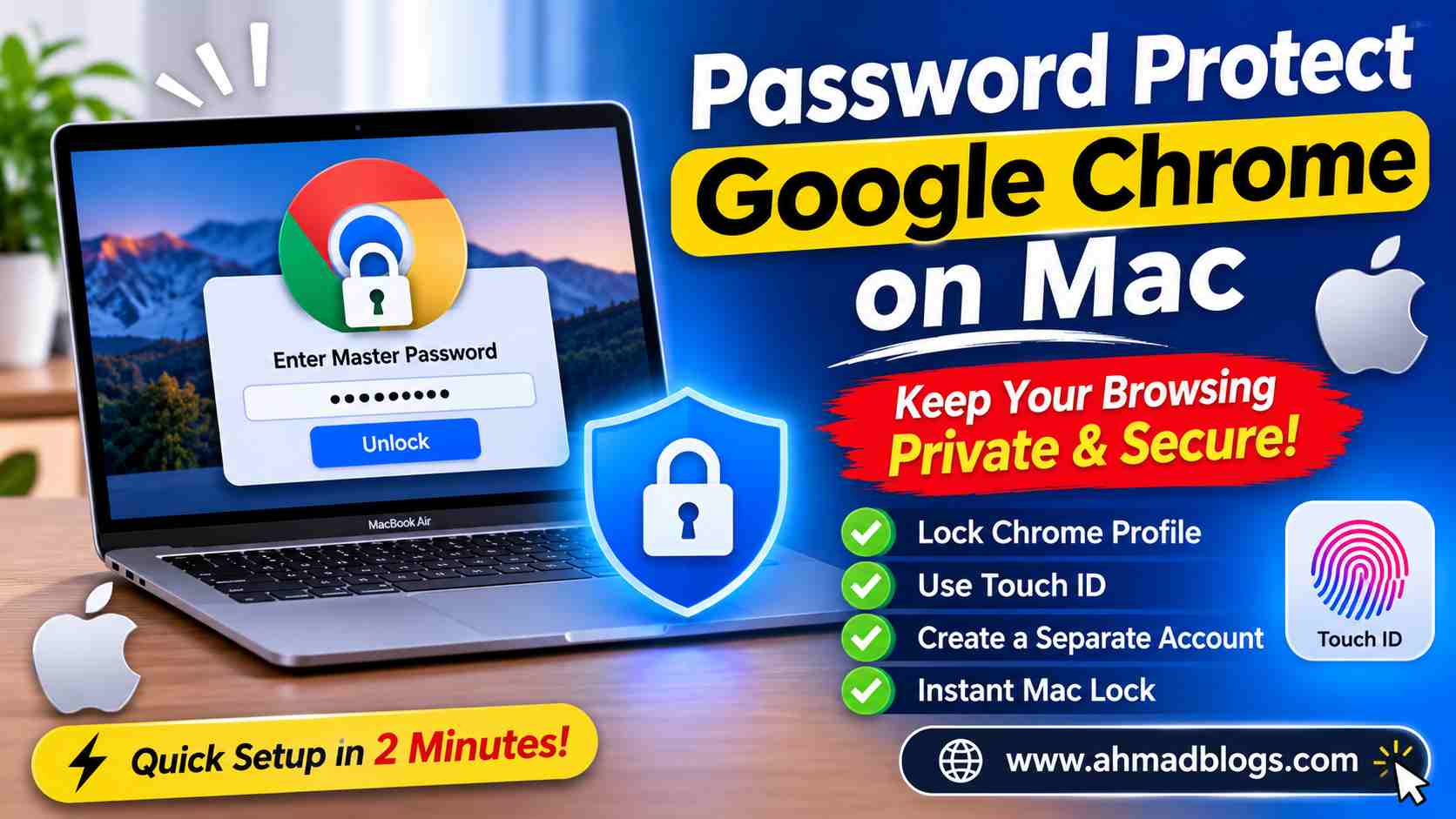
Discover how to lock your Google Chrome profile on Mac. Step-by-step guide to password-protect your browser, use Touch ID authentication, and keep your tabs private.
Apple built the Mac ecosystem around security and privacy, but there is one massive blind spot that catches almost every MacBook user off guard: application-level access.
You close your MacBook lid, Touch ID locks down the machine, and FileVault encrypts your SSD. You feel completely protected. But the moment you unlock your Mac with your fingerprint and hand it to a friend, coworker, or partner to show them a video or let them look something up, your entire digital life is exposed.
All it takes is one click on the Google Chrome icon in your Dock.
Suddenly, your active Gmail, work Slack, WhatsApp chats, confidential client docs, banking dashboards, and saved credit cards are accessible with zero additional prompts. Even worse, if you use Mission Control, Stage Manager, or swipe between desktops on a trackpad, all your open tabs and sensitive workspaces are splayed out in plain sight.
Google refuses to build a native profile password switch into Chrome for macOS, and Apple does not allow you to lock individual third-party apps with Touch ID out of the box.
Fortunately, you do not have to leave your privacy to chance. Here is the definitive, practical guide on how to lock your Google Chrome profile on a Mac using passwords, Touch ID settings, and dedicated extensions.
In a Rush? Here is the Fastest Way:
- Launch Chrome and switch to the specific profile you want to protect.
- Install the Google Chrome Profile Lock extension.
- Create your master PIN or password and set an emergency recovery email.
- Enable Lock on Startup and configure a 3-minute auto-lock inactivity timer. (For cross-device advice and Windows setup, check our complete 2026 Guide to Locking Google Chrome Profile.)
The Mac-Specific Privacy Vulnerabilities Most Users Overlook
Many Mac owners assume that because macOS is more sandboxed than Windows, their Chrome profile is inherently safe. In reality, sharing a Mac brings unique privacy headaches:
- Mission Control and Stage Manager Peeking: If someone swipes up with three fingers on your trackpad or hits the Mission Control key, macOS displays live miniature windows of every single open Chrome tab. If you have payroll sheets, client emails, or medical results open, they render instantly.
- Dock Preview and Fast Profile Launching: If you have multiple Chrome profiles configured on macOS, clicking the Chrome icon in the Dock or searching Chrome in Spotlight immediately surfaces your default profile with active cookies.
- The Coffee Shop Hand-Off: You are working at a coffee shop or co-working space. A colleague asks to use your laptop to test a link or submit a form. You do not want to log out of macOS, close all your creative apps, and log into a guest account just for a two-minute favor.
Method 1: Use a Dedicated Profile Lock Extension (The Best Everyday Balance)
Because macOS does not let you natively lock third-party apps with a password, a profile lock extension is the most practical day-to-day solution for MacBook and iMac users.
Rather than forcing you to sign out of your Mac user account, a profile lock extension operates directly inside the Chrome profile you want to safeguard. When Chrome launches—or when you leave your MacBook idle on a table—the extension drops an opaque authentication barrier over your browser window. Your active tabs are hidden, and all interactions are paused until your PIN is verified.
Why this is the preferred setup on Mac:
- Per-Profile Independence: You can lock your Work or Financial Chrome profile with a strict PIN while leaving an entertainment or family profile completely open on the same Mac.
- Preserves Active Background Sessions: You stay logged into your Google Account, extensions, and web services. You do not have to endure two-factor authentication verification every time you open Chrome.
- Automated Idle Defense: If you step away from your desk at work or get called into a meeting, Chrome locks down on its own after your chosen inactivity window.
Step-by-Step Setup:
- Open Google Chrome on your Mac and ensure you are on the specific profile you want to protect (click your circular profile avatar in the upper-right corner).
- Install the Google Chrome Profile Lock extension.
- Open the extension and choose a secure master PIN or password. Avoid obvious combinations like your birthday.
- Input a valid backup recovery email. Do not skip this step; if you forget your password months later, this allows you to reset it safely without destroying your bookmarks.
- In the extension settings, toggle on "Lock on Startup". This guarantees that whenever Chrome is launched from Spotlight or your Dock, the lock screen triggers before any website renders.
- Set your Auto-Lock Inactivity Timer to 2 to 5 minutes.
Crucial Mac Optimization Tip: Unlike Windows, closing a window on macOS by clicking the red traffic light button does not quit the application. Chrome stays running in the background with a small black dot under its icon in the Dock.
To ensure your profile locks completely whenever you finish browsing, get into the habit of quitting Chrome completely using the keyboard shortcut:
Press Command + Q
Quitting with Command + Q fully shuts down the Chrome process. The next time anyone clicks Chrome in your Dock, the extension immediately demands your PIN before displaying your tabs.
Method 2: Require Mac Touch ID for Saved Passwords (The Native Safety Net)
If you do not mind someone using your Chrome profile to search the web, but you strictly want to prevent them from stealing your passwords or buying items with your autofilled credit cards, Chrome includes a native macOS Touch ID integration.
When enabled, Chrome allows normal browsing, but the instant anyone tries to autofill credentials on a login screen or view passwords in Chrome settings, macOS halts the action and demands your Touch ID fingerprint or Mac admin password.
How to turn on Touch ID protection in Chrome:
- Open Chrome on your Mac and type this in the URL bar:
chrome://password-manager/settings - Scroll to the option titled "Use your screen lock when filling passwords".
- Toggle the switch to ON.
- A native macOS system prompt will drop down asking you to place your finger on the Touch ID sensor or enter your Mac administrator password to confirm.
How this works in practice:
If someone is using your Mac and visits a website where you have saved credentials, Chrome will recognize the account. However, before it pastes the password into the field, a macOS system sheet drops down: "Google Chrome is trying to fill passwords. Use Touch ID to permit this."
Without your finger on the keyboard sensor, Chrome refuses to autofill the credentials, keeping your accounts safe.
Method 3: Use macOS Fast User Switching (Complete File-Level Isolation)
If you share a family iMac or household MacBook permanently with children or roommates, extensions alone might not be enough. If someone has access to your Mac user account, they could theoretically inspect your Mac Library folders or run terminal commands.
For absolute file-level isolation, create separate macOS user accounts and turn on Fast User Switching.
In macOS, every user account stores Chrome data in its own private directory:
~/Library/Application Support/Google/ChromeUnder macOS Unix permissions, one standard user cannot read or copy files from another user's home folder.
How to configure Fast User Switching:
- Open System Settings on your Mac.
- Click Control Center on the left menu, scroll down to Fast User Switching, and select Show in Menu Bar.
- Next, navigate to Users & Groups in System Settings.
- Click Add Account (you will need to enter your Mac admin password or use Touch ID).
- Set the new account to Standard (not Administrator).
- Give it a name like "Family" or "Guest" and create a simple password.
Now, an icon appears in your top menu bar. When someone else wants to use your Mac, you simply click their name in the menu bar. The Mac switches to their clean desktop instantly without quitting your open apps, closing your creative software, or exposing your Chrome data.
Method 4: The Instant Mac Screen Lock Shortcut (Command + Control + Q
)
Command + Control + QWhenever you stand up from your desk in an office, library, or cafe, do not leave your MacBook display unlocked.
Build this muscle memory:
Press Command + Control + Q
This is the universal macOS keyboard shortcut to instantly lock your display. It immediately cuts the screen to your Mac login window, puts your displays to sleep, and requires Touch ID or your user password to unlock.
If your MacBook keyboard has a dedicated Touch ID / Lock key in the upper-right corner, simply pressing that key once achieves the exact same instant lock.
Deep Dive Comparison: Which Mac Method Should You Use?
| Security Approach | Setup Time | Protects Open Tabs? | Protects Saved Logins? | Everyday Convenience | Best Used For |
|---|---|---|---|---|---|
| Profile Lock Extension | 2 Minutes | Yes (Blurs and hides tabs) | Yes (Blocks browser entirely) | Highest (Quick PIN entry) | Daily laptop sharing with family or coworkers |
| Touch ID Password Shield | 30 Seconds | No (Tabs remain visible) | Yes (Requires Touch ID to fill) | High (Passive security) | Preventing unauthorized purchases and account theft |
| Separate macOS User Accounts | 5 Minutes | Yes (Total Unix isolation) | Yes (Separate keychains) | Low (Must switch accounts) | Shared home iMacs or laptops used by kids |
| Command + Control + Q | Instant | Yes (Locks entire Mac) | Yes (Locks entire Mac) | Effortless | Stepping away from your desk at work or school |
Frequently Asked Questions (FAQ)
Can I lock only my Work Chrome profile and leave my Personal profile open on my Mac?
Yes. This is one of the biggest advantages of the Google Chrome Profile Lock extension. Chrome profiles on macOS are sandboxed from each other. You can install the extension exclusively on your Work profile, while your personal profile remains extension-free and launches immediately without any password prompt.
Does closing a window with the red button lock Chrome on Mac?
No. In macOS, clicking the red traffic light button on a window simply closes that specific window; it does not quit the application. If Chrome remains running in your Dock (indicated by the small dot beneath it), reopening Chrome might restore your previous state depending on your settings. Always use Command + Q to fully quit Chrome and ensure the lock screen triggers fresh on the next launch.
What happens if I forget my Chrome profile PIN on my Mac?
If you forget your master passcode, you will not lose your data. The Google Chrome Profile Lock extension includes an emergency reset mechanism. Clicking the recovery prompt sends an encrypted verification link to your designated backup email, allowing you to set a new PIN without losing your open tabs or bookmarks.
Does locking my Chrome profile interfere with Apple iCloud Keychain?
No. Locking your Chrome profile simply creates a gate in front of Chrome itself. It does not tamper with your macOS system keychain or your synced iCloud passwords.
Can someone bypass the profile lock using Mac Force Quit?
If someone hits
Command + Option + EscapeFinal Recommendations
Your Mac is an expensive, powerful tool, and you should be able to let someone browse the web without feeling like you are handing over the keys to your entire personal life.
The most effective Mac workflow:
- Install the Google Chrome Profile Lock extension on your private profiles so you get instant PIN protection without logging out of macOS.
- Enable Touch ID password verification in Chrome settings as a secondary defense against password exposure.
- Use Command + Control + Q whenever you step away from your desk.
With these simple layers in place, your personal communications, browsing habits, and financial data stay completely private.