Want to password protect Google Chrome without installing third-party extensions? Learn 4 native methods including OS accounts, Guest Mode, and Chrome policies.
Whenever people look for ways to password-protect their browser, the first reaction is often: "I do not want to install another third-party extension. Can I just do this natively inside Chrome?"
It is an understandable instinct. Maybe you work on a corporate-managed laptop where IT policy blocks you from installing extensions from the Chrome Web Store. Maybe you are a minimalist who hates browser bloat, or maybe you are just skeptical about giving external tools access to your browsing session.
The direct, honest answer is: Google does not provide an in-app password toggle inside Chrome anymore.
However, that does not mean you are out of options. By leveraging operating system user permissions, Chrome built-in security modes, and native authentication policies, you can build a formidable privacy barrier without installing a single browser extension.
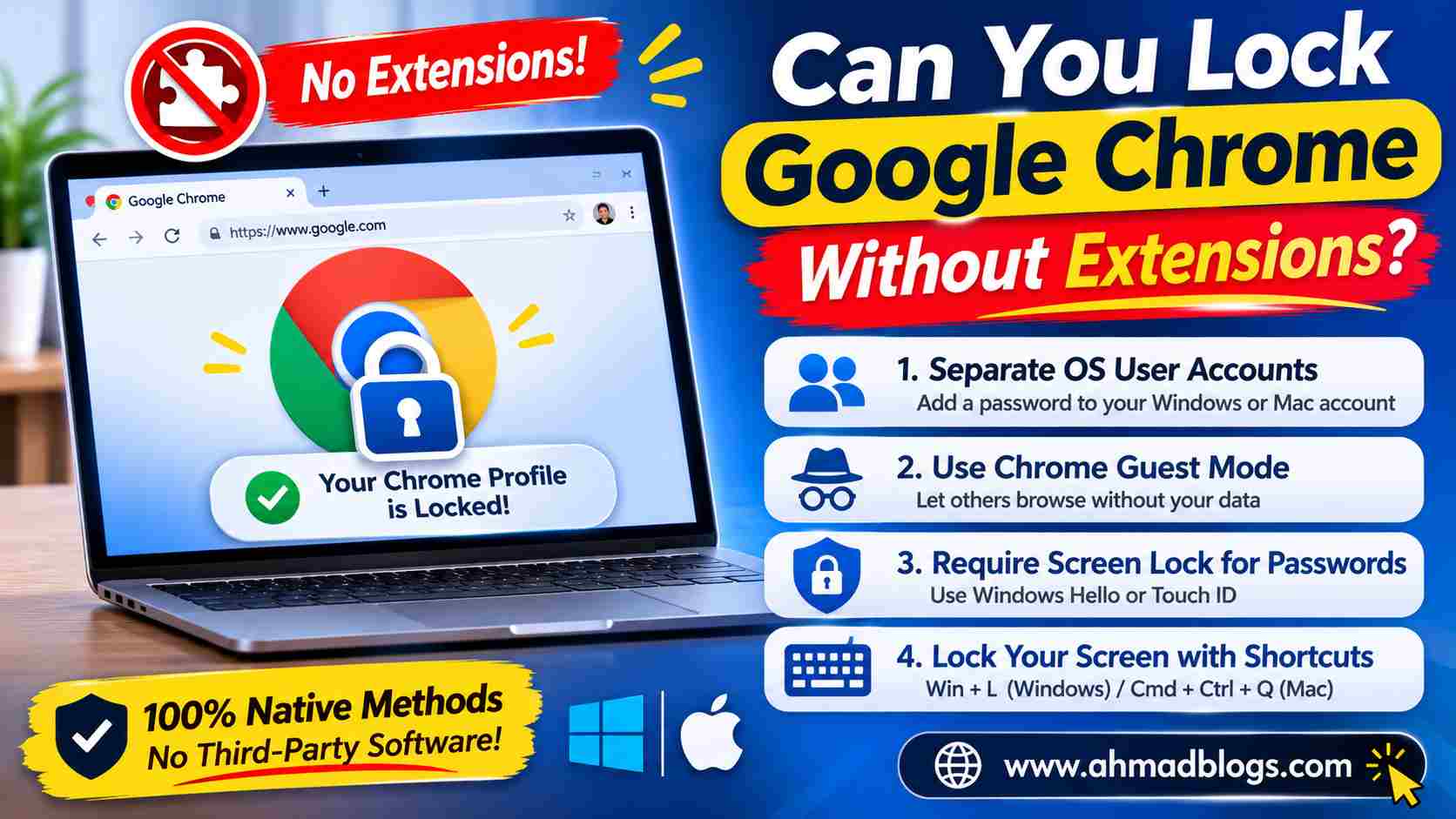
Here are the 4 best ways to lock and protect Google Chrome natively on Windows and Mac.
Looking for an Instant PIN Lock Instead?
If your workplace or personal preference allows browser extensions and you simply want a quick PIN screen without logging out of your computer, see our main 2026 Guide to Locking Google Chrome Profile or install the lightweight Google Chrome Profile Lock extension.
Why People Want to Avoid Extensions (And Why Google Killed Native Locks)
Years ago, Chrome experimented with a built-in feature known as "Supervised Users." It let you attach a password to an individual profile. If someone clicked your profile icon, Chrome demanded your master Google account password before revealing any tabs or bookmarks.
Google eventually killed the feature and removed it entirely.
When users asked why on the official Chromium bug boards, Google developers explained their philosophy: a browser runs on top of an operating system, and true security boundaries must be enforced by the operating system itself. In Google's view, if someone has physical access to your unlocked desktop, any software-level lock inside an app can theoretically be worked around.
That is why Google refuses to bring back a simple lock button.
For users who cannot or will not install extensions, you have to use the security boundaries your operating system already provides.
Method 1: Separate Operating System User Accounts (The Most Secure Native Way)
This is Google's officially recommended path. Instead of trying to put a password on Chrome itself, you put a password on the operating system user account that houses Chrome.
Why this provides complete file-level security:
Both Windows (NTFS) and macOS (APFS/Unix) use system-level file permissions to isolate user home directories.
When you browse Chrome:
- Windows stores all your cookies, history, and passwords under:
C:\Users\YourName\AppData\Local\Google\Chrome\User Data - macOS stores everything under:
~/Library/Application Support/Google/Chrome
Unless someone knows your master Windows login PIN or your macOS account password, they literally cannot open your user folder or read your Chrome files. Even if they open File Explorer or Terminal, the operating system denies them permission.
How to set up an isolated guest or family account:
- On Windows 11 and 10:
- Open Settings by pressing .
Win + I - Navigate to Accounts on the left menu, then select Other users.
- Click Add account, choose I don't have this person's sign-in information, and then click Add a user without a Microsoft account.
- Create a username such as "Family" or "Guest" and leave the password blank for quick access.
- Ensure this account is designated as a Standard User, never an Administrator.
- Open Settings by pressing
- On macOS:
- Open System Settings and click Users & Groups.
- Click Add Account and create a Standard user account.
- Turn on Fast User Switching under Control Center settings so you can switch back and forth from the menu bar without quitting your open apps.
The Reality Check: While this is 100% secure, it comes with friction. Switching entire operating system accounts closes background software, interrupts gaming or rendering sessions, and takes 20 to 30 seconds every time someone asks to use your computer.
Method 2: Always Hand Over Your Laptop in Chrome Guest Mode
If someone walks up to you and says, "Can I borrow your laptop for two minutes to look up an address?", you do not need to switch OS accounts, and you do not need an extension.
You just need to know how to launch Guest Mode.
Guest Mode is an isolated, temporary browsing sandbox built directly into every copy of Google Chrome.
How to trigger Guest Mode:
- Click your circular profile avatar picture in the top-right corner of Chrome.
- In the dropdown menu, look under the "Other profiles" section.
- Click Guest.
- A brand-new, clean Chrome window will launch immediately.
- Minimize or close your personal Chrome window before handing over the computer.
What Guest Mode guarantees:
- The guest cannot see any of your bookmarks, saved passwords, browsing history, or autofill suggestions.
- The guest cannot modify your Chrome settings or access your extensions.
- The moment they close the Guest window, all cookies, temporary session data, and browsing history from that session are permanently wiped.
The Limitation: Guest Mode only works if you remember to launch it before handing over your computer. It does not prevent someone from simply clicking your personal Chrome window from the Windows taskbar or Mac Dock if you leave the laptop unattended.
Method 3: Require Native Screen Lock for Stored Passwords
If your primary concern is preventing people from viewing your saved logins or autofilling your credit cards when they use your computer, you can enforce native operating system authentication inside Chrome.
Both Windows Hello and macOS Touch ID can be hooked directly into Chrome's credential manager without any third-party software.
How to turn on native password shielding:
- Open Chrome and paste this in your URL address bar:
chrome://password-manager/settings - Look for the setting titled "Use your screen lock when filling passwords".
- Toggle the switch to ON.
- Your operating system will prompt you to enter your Windows PIN or scan your Mac Touch ID fingerprint to authorize the change.
How it behaves during daily use:
Whenever someone sits at your computer and visits a site where you have saved credentials, Chrome will recognize the account. However, before it inputs the password or allows anyone to reveal plain-text passwords in settings, a system dialogue drops down: "Google Chrome is trying to fill passwords. Enter your system PIN or Touch ID."
Without your physical fingerprint or Windows/Mac passcode, Chrome refuses to fill the credentials.
Method 4: Master the Instant Hardware Lock Shortcut
The fastest native defense requires zero software configuration. It just requires building a physical reflex:
- On Windows: Press Win + L
- On Mac: Press Command + Control + Q (or tap the Touch ID / Lock key on your MacBook keyboard)
Make it a non-negotiable rule: whenever your body leaves your chair—whether to grab water, go to the restroom, or answer the doorbell—hit this shortcut.
It takes less than a second, puts your display to sleep, and locks down your entire computer behind your master system credentials.
Native Methods vs. Profile Lock Extensions: Which Should You Choose?
To decide which approach fits your workflow, compare the daily tradeoffs:
| Feature | Native OS Accounts | Native Guest Mode | Google Chrome Profile Lock Extension |
|---|---|---|---|
| Requires Installing Software? | No | No | Yes (From Chrome Web Store) |
| Locks Open Tabs On Inactivity? | No | No | Yes (Automatic idle timer) |
| Allows Instant PIN Entry? | No (Must log into OS) | No (Blank session) | Yes (Unlocks in 2 seconds) |
| Protects Multiple Profiles on 1 Login? | No | No | Yes (Locks specific profiles only) |
| Best Everyday Use Case | Shared family PCs with kids | Quick 2-minute loan to a friend | Daily laptop sharing with roommates or coworkers |
Frequently Asked Questions (FAQ)
Can I set a password on a desktop shortcut for Google Chrome?
Not natively on Windows or Mac. While some third-party executable lock tools claim to password-protect
.exeIs Incognito Mode the same as locking Chrome?
No. Incognito mode simply prevents Chrome from saving your history, cookies, and form data for that specific browsing session. It does not lock your existing profile, and it does not hide your open personal tabs. Handing someone your computer with your personal profile minimized and an Incognito window open leaves your personal profile completely vulnerable.
Can enterprise IT administrators lock down Chrome without extensions?
Yes. Organizations use Chrome Enterprise Policies (via Group Policy on Windows or configuration profiles on macOS) to enforce restrictions. IT admins can force users to authenticate through corporate single sign-on (SSO), disable Guest mode, block Incognito mode, or mandate that Chrome wipes all session data the moment a browser window closes.
Why should I consider an extension if native methods exist?
Native methods work, but they are clumsy. Logging in and out of Windows accounts takes time and interrupts your open work. Guest mode requires you to remember to launch it every single time.
If you want seamless privacy where you can leave your laptop on a table and know that Chrome will demand a PIN after 3 minutes of idle time, installing the Google Chrome Profile Lock extension is simply far more convenient for everyday life.
Final Thoughts
You do not need to install third-party software if you strictly want to keep your system vanilla.
By combining Separate Operating System Accounts for permanent computer sharing, Guest Mode for quick one-off favors, and the Win + L or Command + Control + Q lock shortcut whenever you step away, you can maintain solid privacy natively.
However, if you find that switching operating system accounts is too slow for your daily workflow, using a purpose-built tool like the Google Chrome Profile Lock extension gives you the exact same protection right inside your browser in under two minutes.