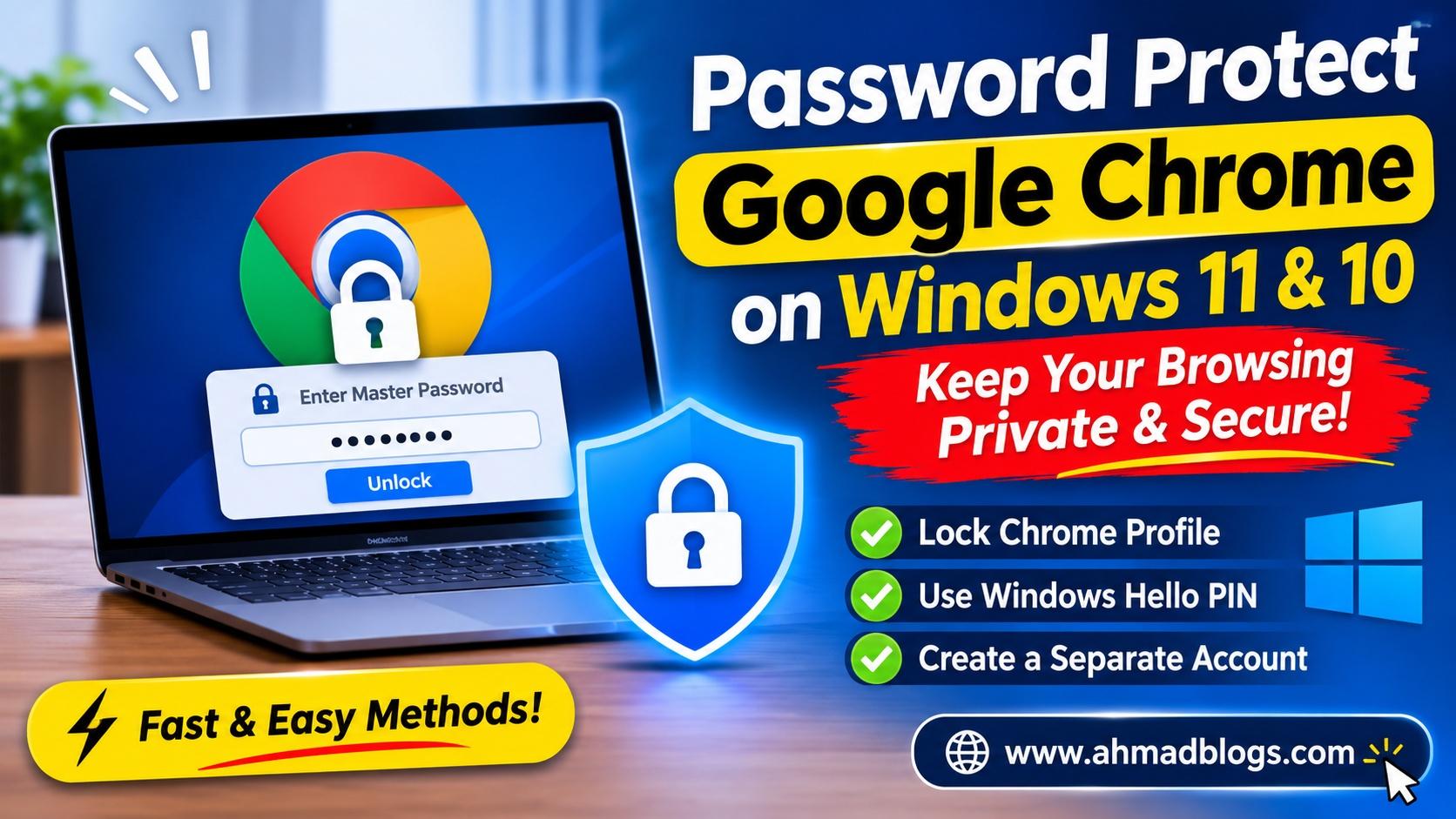
Learn how to password protect Google Chrome on Windows 11 and 10. Secure your browser profile using Windows Hello PIN, built-in settings, or dedicated lockers.
I learned this lesson the hard way about two years ago.
A friend asked to borrow my laptop for literally five minutes to check their flight details and print a boarding pass. I handed over my Windows machine without thinking twice. About fifteen minutes later, I walked back into the room and saw them innocently clicking through browser tabs.
My stomach dropped.
My personal Gmail was open in tab two. My WhatsApp Web was running in tab three. My bank account session hadn't timed out yet, and my Google Password Manager was completely accessible with just two clicks. They weren’t trying to spy on me—they were just clicking around trying to find their download—but my entire digital life was sitting right there in front of them, completely naked.
If you share a Windows 11 or Windows 10 computer with roommates, partners, kids, or colleagues in an open-plan office, you know that exact feeling of quiet panic. You shouldn’t have to hover over someone’s shoulder like an anxious hawk every time you lend them your laptop.
Naturally, everyone searches the exact same thing: "How do I put a password on my Google Chrome profile?"
The bad news? Google still refuses to give us a native password toggle. The good news? You can easily set up airtight protection on Windows in just a couple of minutes once you understand how the system works.
Here is everything you need to know, from quick practical fixes to advanced Windows security tweaks.
In a Rush? Here is the Fastest Way:
- Open the specific Chrome profile you want to protect.
- Install the Google Chrome Profile Lock extension.
- Set your custom master PIN and add your emergency recovery email.
- Turn on Lock on Startup and set a 3-minute auto-lock timer. (For Mac instructions or general browser security tips, read our broader 2026 Guide to Locking Google Chrome Profile.)
The Real Danger of an Unlocked Chrome on Windows
Most people think, "I trust my family, so what's the worst that could happen?"
The problem is rarely intentional malicious hacking. It is accidental chaos and casual snooping:
- Autofill Disaster: A family member buying something on Amazon can accidentally charge your saved card with one click because Chrome autofilled your address and credit card details.
- Session Hijacking: Anyone sitting at your PC can open your Gmail, Slack, or Discord and read private messages without ever needing your account passwords.
- Google Password Manager Vulnerability: In Chrome, going to lists every single password you have ever saved. Unless your Windows operating system lock is configured properly, they can view those passwords in plain text.
chrome://password-manager - Search and History Contamination: If your kids search for games or watch cartoons on your personal profile, Google algorithms permanently alter your YouTube recommendations, search suggestions, and work feeds.
Method 1: Use a Dedicated Profile Lock Extension (The Best Everyday Balance)
For most people, installing a specialized profile lock extension is the most practical answer.
Instead of forcing you to log out of Windows, a profile lock extension operates inside the specific Chrome profile you want to protect. When Chrome launches—or when your PC sits idle for a few minutes—the extension instantly throws up a secure lock barrier across the browser window. Your tabs are hidden, your keyboard inputs are intercepted, and nobody can view or click anything until your master PIN is entered.
Why this is my recommended setup on Windows:
- True Per-Profile Isolation: This is the biggest advantage. You can put a 6-digit PIN on your sensitive Work or Financial profile, but leave a generic Family Chrome profile completely unlocked on the same desktop.
- You Never Lose Active Sessions: Logging out of Chrome or clearing cookies to protect yourself is frustrating because you have to constantly re-enter two-factor authentication codes, authenticator prompts, and passwords every morning. An extension keeps you signed in; it simply places a padlock on the front door.
- Automated Idle Defense: If you get distracted, walk away to answer the front door, or leave your desk at work to chat with a colleague, you do not have to worry. If your timer is set to 3 minutes, Chrome locks itself down automatically.
Step-by-Step Setup:
- Open Google Chrome and make sure you are in the exact profile you want to protect (click your small circular avatar in the top right to verify).
- Install the Google Chrome Profile Lock extension.
- Upon opening the extension for the first time, you will be prompted to create your master PIN or password. Make it strong—avoid obvious combinations like 1234.
- Provide a backup recovery email address. Do not skip this step. If you forget your passcode months down the line, this is your safety net to regain access without resetting your profile.
- In the extension settings, toggle on "Lock on Startup". This ensures that even if someone restarts your PC and clicks Chrome, the lock screen appears before any webpage has a chance to load.
- Set your Auto-Lock Inactivity Timer. I recommend 3 to 5 minutes. Anything shorter can disrupt your flow; anything longer leaves too big of a vulnerability window.
Important Windows Tweak (Do Not Skip This!): By default, Windows allows Chrome to run background helper processes even after you close all windows. Sometimes, this can cause Windows to believe Chrome was never closed, which might prevent the lock screen from triggering fresh on the next click.
To fix this in 10 seconds:
- In Chrome, paste this in the address bar:
chrome://settings/system- Find "Continue running background apps when Google Chrome is closed".
- Turn this toggle OFF.
Now, whenever you close Chrome, it completely shuts down from Windows memory. When anyone opens it again, your password prompt triggers immediately.
Method 2: Require Windows Hello PIN for Stored Passwords (The Native Safety Net)
Maybe you do not mind if your spouse or kids browse the web on your Chrome profile, but you strictly want to prevent them from stumbling into your saved passwords, viewing your bank logins, or autofilling your credit card on shopping sites.
Chrome includes an integrated Windows Hello protection feature.
When enabled, Chrome allows people to use the browser freely, but the moment anyone tries to reveal a password in settings or autofill saved credentials on a login page, Windows freezes Chrome and demands your Windows 11 Hello PIN, fingerprint, or facial recognition.
How to turn on Windows Hello password guarding:
- Open Chrome and paste this directly into your address bar:
chrome://password-manager/settings - Look down the list for the option called "Use your screen lock when filling passwords".
- Flip the toggle switch to ON.
- A Windows system dialog will immediately pop up in the middle of your screen asking you to enter your current Windows Hello PIN or scan your finger to confirm you are the administrator.
How this protects you day-to-day:
Say a friend is using your computer and goes to a login page. Chrome will recognize your saved account, but before it pastes the password, Windows will display a popup: "Google Chrome is trying to fill passwords. Verify your identity."
If they cannot provide your personal Windows Hello PIN or fingerprint, Chrome leaves the password box completely empty. They cannot log in, and they cannot view what the password was.
Method 3: Separate Windows User Accounts (The Complete Isolation Option)
If you live in a house with teenagers who know their way around computers, or you share a desktop PC in a college dorm, extensions might not be enough. A clever user with local computer access could theoretically boot Windows in Safe Mode, delete extension folders from the AppData directory, or install another browser to read unprotected files.
If you need complete file-level security where nobody can touch your data under any circumstances, you must use separate Windows user accounts.
When you create a separate Windows profile:
- Your data lives at:
C:\Users\YourName\AppData\Local\Google\Chrome\User Data - Their data lives at:
C:\Users\OtherPerson\AppData\Local\Google\Chrome\User Data
Because of Windows NTFS file-system permissions, a standard user account literally does not have read permissions for your user folder. Even if they open File Explorer, Windows gives them an "Access Denied" error.
How to configure a clean secondary account on Windows 11:
- Press to open Settings.
Win + I - Click Accounts on the left sidebar, then click Other users.
- Click the Add account button.
- When prompted for an email, click "I don't have this person's sign-in information".
- On the next screen, click "Add a user without a Microsoft account" (this saves you from creating a dummy Microsoft email and creates a quick, local account).
- Name the account something simple like "Guest" or "Family".
- Leave the password blank if you want them to hop on easily, or set a simple shared password.
- Make sure the account type remains set to Standard User (never make a guest an Administrator).
Now, when family members sit down at the PC, they click the "Guest" account on the Windows lock screen. They get their own clean Chrome browser, their own desktop wallpaper, and zero access to your personal files.
Method 4: The 1-Second Habit That Saves Your Privacy (Win + L
)
Win + LNo software in the world can protect you if you leave your laptop wide open on a table while you walk into another room for thirty minutes.
The most reliable privacy tool on Windows is already built into your keyboard:
Press Win + L
Win + LGet into the habit of hitting this key combination every single time you push your chair back from your desk.
It takes less than half a second. Your screen immediately cuts to the Windows lock screen, all background tasks keep running, and your monitor goes to sleep. When you come back, tap your fingerprint reader or type your 4-digit PIN, and you are back to work in two seconds with everything right where you left it.
Deep Dive Comparison: Which Method Fits Your Lifestyle?
| Feature | Profile Lock Extension | Windows Hello Autofill Shield | Separate Windows User Account | Physical |
|---|---|---|---|---|
| Setup Time | Approximately 2 Minutes | Approximately 30 Seconds | 8 to 10 Minutes | Instant (0 seconds) |
| Protects Open Tabs? | Yes (Hides immediately) | No (Tabs remain visible) | Yes (Completely isolated) | Yes (Locks entire OS) |
| Protects Passwords? | Yes (Blocks browser access) | Yes (Requires OS PIN to autofill) | Yes (Separate database) | Yes (Blocks entire machine) |
| Daily Convenience | Highest (Fast PIN unlock) | High (Passive protection) | Low (Requires logging in/out) | Effortless |
| Ideal For | Daily laptop sharing with family/friends | Preventing password theft on shared PCs | Family PCs shared with kids/techies | Office spaces, coffee shops, libraries |
Advanced Troubleshooting & Windows Quirks
If you are setting up profile security on Windows, keep these small nuances in mind so you do not run into issues down the road:
1. What About Incognito Mode?
By default, Google Chrome automatically disables all extensions inside Incognito windows. That means if your profile is locked, an inquisitive person might think, "I will just right-click Chrome and open a new Incognito window."
A properly designed extension like Google Chrome Profile Lock is built to intercept window creation and enforce authentication. However, if you want to be completely airtight, you can disable Incognito mode entirely across your Windows machine using the Windows Registry:
- Path:
HKEY_LOCAL_MACHINE\SOFTWARE\Policies\Google\Chrome - Create a DWORD (32-bit) value called and set its value to
IncognitoModeAvailability.1
2. Dual-Monitor Setups
If you use two or three monitors connected to a Windows desktop or docking station, be aware that Chrome windows positioned on secondary monitors will also be covered by the lock screen overlay. Make sure your primary display is set correctly in Windows Display Settings so the password entry box appears directly in front of you.
3. What if Task Manager is Used?
Someone might ask: "Can a tech-savvy roommate just press
Ctrl + Shift + EscFrequently Asked Questions (FAQ)
Can I lock only my Work profile and leave my Personal profile open on the same PC?
Yes. This is one of the biggest reasons to use the Google Chrome Profile Lock extension. Chrome profiles are independent environments. You can install the extension exclusively on your Work profile (requiring a PIN on launch), while your personal profile has no extension installed and opens with a single click.
Does Windows Hello work on custom desktop PCs without a webcam?
Yes. Many people believe Windows Hello requires an expensive infrared face-recognition camera. That is not true. Windows Hello supports a standard 4-digit or 6-digit Windows Hello PIN, which works on any computer running Windows 10 or Windows 11, including custom desktop towers with no webcam or fingerprint sensor.
What happens if I forget my Chrome profile PIN?
If you forget your master password, you are not stranded. The Google Chrome Profile Lock extension includes an emergency recovery link. Clicking "Forgot PIN" sends an encrypted reset verification link to your designated backup email address, allowing you to establish a new passcode without wiping out your bookmarks, history, or open tabs.
Does locking Chrome log me out of my open accounts?
No. This is the primary reason people avoid clearing cookies or logging out of Google. When you lock your profile with an extension, all your background sessions—like your active Gmail, online banking dashboard, or cloud apps—remain fully signed in. The extension simply drops an opaque barrier over the interface until you type your PIN.
Why did Google remove the old profile lock feature?
Google previously experimented with a feature called "Supervised Users" that allowed users to lock profiles with their Google password. Google discontinued the program to push users toward Google Family Link on Chromebooks and mobile devices. Google's current official recommendation is to rely exclusively on Windows user accounts.
Final Recommendations
You should not have to feel anxious every time you step away from your desk or lend your laptop to someone for a quick search.
For the vast majority of Windows users, the winning formula is simple:
- Install the Google Chrome Profile Lock extension on your private profiles so you get instant PIN protection without logging out.
- Turn on Windows Hello password filling in your Chrome settings as an extra layer of defense against credential theft.
- Make second nature whenever you stand up from your desk.
Win + L
With those three safeguards in place, your browsing history, work sessions, and personal logins will stay strictly yours—no matter who touches your computer.